
You spent hours building a beautiful comparison table. It looks great on the page—clean rows, color-coded cells, easy to scan. But when AI systems try to extract that data for their answers, they get confused. Your carefully structured comparison becomes a garbled mess.
AI systems parse tables differently than humans. They rely on semantic structure, not visual layout. When that structure is missing or ambiguous, AI either extracts incorrect information or skips the table entirely.
This troubleshooting guide covers the most common reasons AI fails to parse comparison tables—and how to fix each one.
Common Table Parsing Problems
Before diving into fixes, let's identify what typically goes wrong. These are the patterns we see most often in tables AI can't parse:
| Problem | What AI Sees | Impact |
|---|---|---|
| Missing th elements | No column headers identified | Can't assign meaning to data |
| Div-based “tables” | No table structure at all | Data appears as unrelated text |
| Images/icons in cells | Empty cells or alt text only | Missing key comparison data |
| Merged cells | Broken row/column relationships | Wrong data in wrong context |
| Inconsistent cell formats | Mixed data types in columns | Can't compare values |
Let's work through each problem with specific before/after examples.
Problem: Missing Table Headers
The most common issue: tables that use td for everything, including the header row. Humans can visually identify the first row as headers; AI cannot.
What's Wrong
When you use td for headers, AI systems see a table with no column definitions. They can't determine that “Price” is a header meaning “values below are prices.” Each cell becomes disconnected data.
Before (problematic): A table where the first row uses td elements for “Product,” “Price,” “Rating.” AI sees three data cells, not column definitions.
The Fix
Use th for header cells, wrap them in thead, and add scope attributes for clarity.
After (correct): Header row uses th elements with scope=”col”, wrapped in thead. AI now knows “Price” is a column header—every td in that column is a price value.
The scope attribute explicitly tells AI whether the header applies to a column (scope=”col”) or row (scope=”row”). This removes ambiguity in complex tables.
Problem: CSS-Styled Divs Instead of Tables
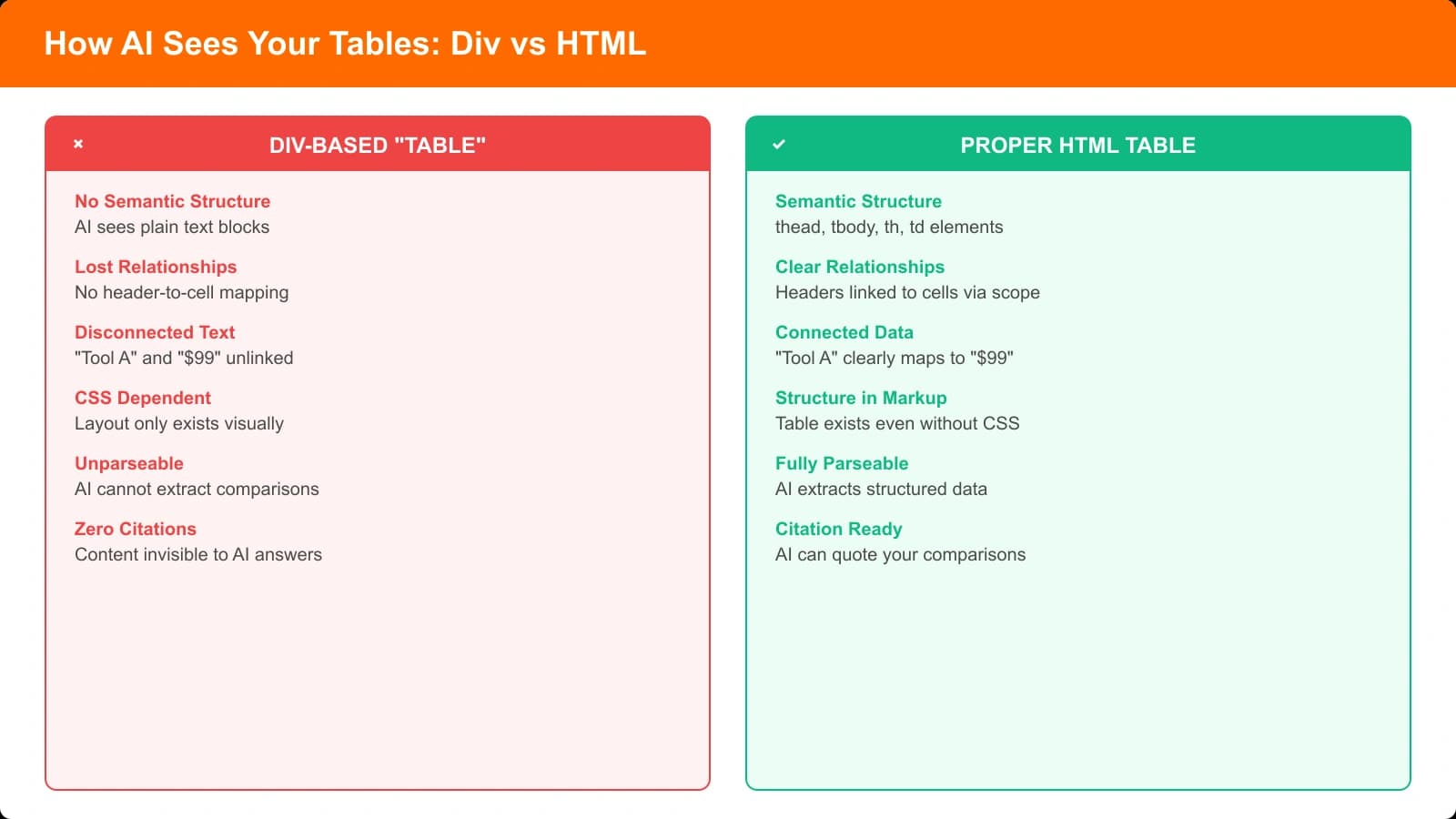
Many modern designs avoid table elements for styling flexibility, using divs with CSS Grid or Flexbox instead. These look like tables to humans but are invisible as tables to AI.
What's Wrong
AI systems look for table/thead/tbody/tr/th/td elements. A div with display: grid is semantically meaningless—it's just a container. The “table” structure exists only in CSS, which AI parsers typically ignore.
Before (problematic): A comparison “table” built with div elements styled as a grid. Looks perfect visually; AI sees only a sequence of text blocks with no relationship between them.
The Fix
Use real table elements. You can still apply custom styling—table elements are fully stylable with CSS. The semantic structure remains for AI while you get the visual design you want.
After (correct): Same visual design, but built with actual table, tr, th, td elements. CSS handles appearance; HTML handles structure. AI can now parse the comparison data correctly.
Generate AI-Parseable Comparison Tables
Create listicles with properly structured tables that AI systems can extract and cite.
Try for Free
Problem: Icons and Images as Data
Using checkmarks, X icons, or star images to indicate yes/no or ratings creates visual elegance but semantic emptiness.
What's Wrong
AI systems can't interpret icon meanings. A green checkmark means “yes” to humans; to AI, it's either an image file name or empty if no alt text exists. Star images representing “4.5/5” are similarly opaque.
Before (problematic): “Free Trial” column contains checkmark icons for products that offer trials, X icons for those that don't. AI sees empty cells or meaningless alt text like “checkmark.png”
The Fix
Include text alongside icons, or use text with CSS styling to appear as icons.
After (correct): Cell contains “Yes” or “No” text (optionally visually hidden) alongside the icon. AI extracts the text; humans see the icon. Both get the information they need.
For star ratings, include the numerical rating as text: “4.5/5” even if you also show star icons. AI can then extract and compare ratings.
Problem: Inconsistent Cell Content
When the same column contains different data formats, AI struggles to compare values or extract patterns.
What's Wrong
A “Price” column that contains “$29/mo”, “Free”, “Contact sales”, and “Starting at $50” is technically accurate but semantically inconsistent. AI can't compare these values or identify the cheapest option.
Before (problematic): Price column mixes formats, currencies, billing periods, and non-numeric values. Comparison becomes impossible programmatically.
The Fix
Standardize cell content formats within columns. Use consistent currency, billing period, and format. If a value isn't numeric, use a standard placeholder.
After (correct): All prices in “$X/month” format. Free products show “$0/month (Free)”. Contact sales shows “Custom pricing”. AI can now identify price ranges and patterns.
Making Tables AI-Friendly
AI-parseable tables aren't harder to build—they just require attention to semantic structure rather than only visual appearance. Use real table elements, proper headers with scope, text-based data (not just icons), and consistent formatting.
The payoff: your comparison data becomes extractable. AI systems can cite your specific product comparisons, quote your feature comparisons, and reference your pricing data accurately. Tables that AI can parse become tables that AI cites.
For the broader picture of structured content for AI, see Structured vs Unstructured Listicles and HTML Semantics for AI Crawlers.

Product Manager at BestPage. Pioneer in AEO research since 2024, exploring the convergence of SEO and GEO (Generative Engine Optimization). Led multiple AI-powered content optimization projects that achieved 300%+ citation increases in ChatGPT and Perplexity.