
Comparison tables should be a goldmine for AI citations. Think about it: they're structured, they're data-rich, and they contain exactly the kind of comparative information users are asking about.
But here's the frustrating reality: most comparison tables on the web are nearly impossible for AI systems to parse correctly. They use CSS-styled divs instead of actual table elements. They rely on checkmark icons without text alternatives. They lack proper headers and relationships. From an AI's perspective, they're just a jumble of disconnected cells.
The good news? Fixing this isn't hard. It mostly comes down to using HTML tables correctly—the way they were designed to be used. Let's dig into exactly what makes tables AI-readable, with templates you can use directly. For the broader context on structured data, see our complete guide on structured data for listicles.
Why Most Comparison Tables Fail for AI
Let me show you what typically goes wrong. I pulled a random “best CRM software” comparison table from a top-ranking site and ran it through various AI parsers. The results were... not great.
The table looked fine visually. But under the hood:
- It used
<div>elements styled as a grid—not actual<table>markup - Feature availability was shown with SVG checkmarks—no text fallback
- Column headers weren't properly associated with data cells
- There was no caption explaining what the table compared
When ChatGPT tried to summarize this table, it returned: “I can see there's a comparison table, but I'm unable to extract the specific feature comparisons.” That's a missed opportunity.
According to the W3C Web Accessibility Initiative, properly structured tables aren't just better for screen readers—they're better for any system trying to programmatically understand tabular data. That includes AI systems.
The Semantic Table Structure AI Needs
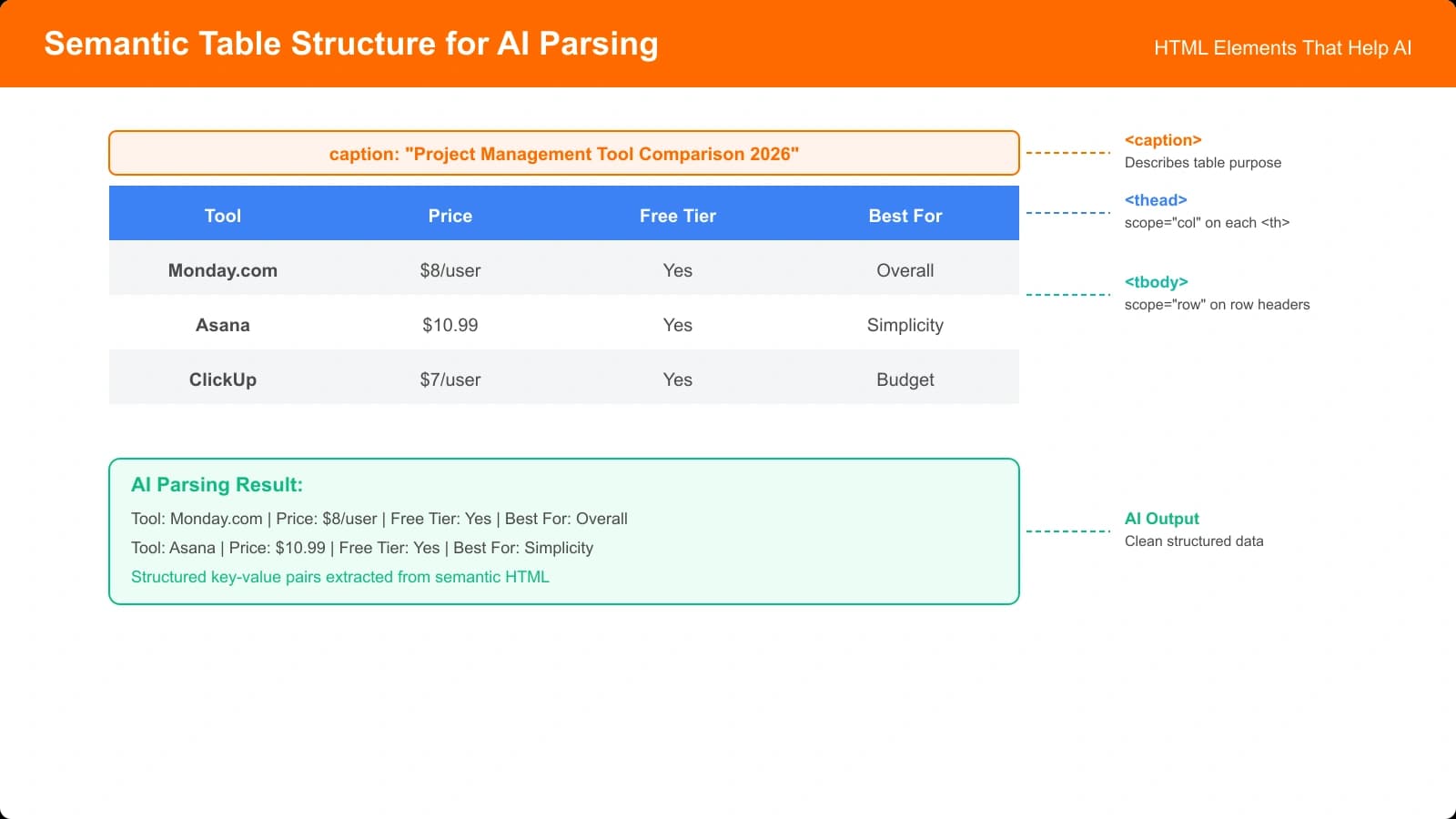
Here's the basic structure that makes tables machine-readable:
<table>
  <caption>
    CRM Feature Comparison: HubSpot vs Salesforce vs Pipedrive
  </caption>
  <thead>
    <tr>
      <th scope="col">Feature</th>
      <th scope="col">HubSpot</th>
      <th scope="col">Salesforce</th>
      <th scope="col">Pipedrive</th>
    </tr>
  </thead>
  <tbody>
    <tr>
      <th scope="row">Free Plan</th>
      <td>Yes, unlimited users</td>
      <td>No</td>
      <td>14-day trial only</td>
    </tr>
    <tr>
      <th scope="row">Email Integration</th>
      <td>Gmail, Outlook, native</td>
      <td>All major providers</td>
      <td>Gmail, Outlook</td>
    </tr>
  </tbody>
</table>
Let's break down why each element matters:
The Caption Element
The <caption> tells AI systems what the table is comparing. Without it, they have to infer purpose from surrounding text—which is error-prone.
Good captions are specific: “CRM Feature Comparison: HubSpot vs Salesforce vs Pipedrive” beats “Comparison Table.”
The Scope Attribute
The scope attribute tells machines which cells a header applies to:
scope="col"— This header labels a columnscope="row"— This header labels a row
Most sites skip this entirely. Don't. It's a simple addition that dramatically improves parseability.
Thead and Tbody Separation
Wrapping headers in <thead> and data in <tbody> creates clear structural boundaries. AI systems can immediately identify which row contains labels vs. which contains actual data.
Cell Content That AI Can Extract
Beyond structure, the actual content in your cells matters hugely. Here's where many tables fail.
Text Over Icons
Icons are great for humans scanning quickly. But AI systems can't interpret a checkmark SVG.
Instead of:
<td><svg class="check-icon">...</svg></td>Use:
<td>
  <span class="visually-hidden">Yes</span>
  <svg class="check-icon" aria-hidden="true">...</svg>
</td>
Or even simpler—just use text with CSS styling:
<td class="feature-yes">Yes</td>
<td class="feature-no">No</td>
<td class="feature-partial">Limited</td>Specific Values Over Generic Labels
AI systems extract more value from specific information:
- Instead of: “Yes” → Use: “Yes, unlimited users”
- Instead of: “Premium only” → Use: “$49/mo plan and above”
- Instead of: “Good” → Use: “4.5/5 (based on 2,847 reviews)”
The more specific your cell content, the more useful it is when extracted as a citation.
Complete Phrases Over Fragments
When possible, make cells self-explanatory:
<!-- Harder to cite in isolation -->
<td>14 days</td>

<!-- Easier to cite -->
<td>14-day free trial</td>
An AI extracting the second version can use it directly in an answer without needing to pull context from the header.
Create AI-Parseable Comparison Tables
Generate comparison tables with the semantic structure AI systems can actually extract. Proper markup, clear data relationships, built-in.
Try for Free
Ready-to-Use Table Templates
Let me give you some templates you can adapt for common comparison scenarios.
Template 1: Feature Comparison Table
<table>
  <caption>Email Marketing Platform Features: Mailchimp vs ConvertKit vs Klaviyo</caption>
  <thead>
    <tr>
      <th scope="col">Feature</th>
      <th scope="col">Mailchimp</th>
      <th scope="col">ConvertKit</th>
      <th scope="col">Klaviyo</th>
    </tr>
  </thead>
  <tbody>
    <tr>
      <th scope="row">Free Plan Subscribers</th>
      <td>Up to 500 contacts</td>
      <td>Up to 1,000 contacts</td>
      <td>Up to 250 contacts</td>
    </tr>
    <tr>
      <th scope="row">Automation Workflows</th>
      <td>Available on paid plans</td>
      <td>Included in all plans</td>
      <td>Advanced flows on all plans</td>
    </tr>
    <tr>
      <th scope="row">E-commerce Integration</th>
      <td>Shopify, WooCommerce, more</td>
      <td>Limited e-commerce focus</td>
      <td>Deep Shopify and BigCommerce</td>
    </tr>
  </tbody>
</table>
Template 2: Pricing Comparison Table
<table>
  <caption>Project Management Tool Pricing (Monthly, per user)</caption>
  <thead>
    <tr>
      <th scope="col">Tool</th>
      <th scope="col">Free Tier</th>
      <th scope="col">Starter</th>
      <th scope="col">Professional</th>
      <th scope="col">Enterprise</th>
    </tr>
  </thead>
  <tbody>
    <tr>
      <th scope="row">Asana</th>
      <td>Up to 15 users</td>
      <td>$10.99/user/month</td>
      <td>$24.99/user/month</td>
      <td>Custom pricing</td>
    </tr>
    <tr>
      <th scope="row">Monday.com</th>
      <td>Up to 2 users</td>
      <td>$9/user/month</td>
      <td>$16/user/month</td>
      <td>Custom pricing</td>
    </tr>
  </tbody>
</table>
Adding Schema Markup to Tables
While semantic HTML is the foundation, you can add schema.org markup to further help AI systems understand your tables. According to schema.org's Table documentation, you can explicitly mark up table content.
For comparison tables in listicles, I typically recommend keeping the structured data at the ItemList level (as covered in our structured data guide) rather than marking up individual tables. But for standalone comparison pages, here's an approach:
{
  "@context": "https://schema.org",
  "@type": "Table",
  "about": {
    "@type": "ItemList",
    "name": "CRM Feature Comparison",
    "numberOfItems": 3,
    "itemListElement": [
      {
        "@type": "SoftwareApplication",
        "name": "HubSpot CRM",
        "applicationCategory": "BusinessApplication"
      },
      {
        "@type": "SoftwareApplication",
        "name": "Salesforce",
        "applicationCategory": "BusinessApplication"
      }
    ]
  }
}Testing Your Tables for AI Readability
How do you know if your tables are actually AI-parseable? Here are some practical tests.
The Copy-Paste Test
Select your table and paste it into a plain text editor. Can you still understand the relationships? If the structure completely breaks down, AI systems will struggle too.
The Screen Reader Test
Run your page through a screen reader (or use your browser's accessibility tools). If the table is properly marked up, the screen reader will announce headers and their relationships correctly. What works for screen readers generally works for AI parsers.
The Direct AI Test
The most practical test: ask an AI about your table.
- Copy your table HTML (or the rendered page URL if the AI has web access)
- Ask: “What does this table compare? Which option has the best free plan?”
- If the AI can answer accurately, your table is parseable
I run this test on every comparison table before publishing. It takes two minutes and catches most issues.
Common Table Mistakes to Avoid
Merged Cells
Using colspan and rowspan to merge cells creates parsing ambiguity. If you must merge cells, be very precise about header associations.
Nested Tables
Never nest tables. It confuses every parsing system—including humans.
CSS Grid “Tables”
Yes, CSS Grid makes beautiful responsive layouts. But if your data is tabular, use a <table>. Seriously.
Empty Cells Without Context
An empty cell is ambiguous. Does it mean “No”? “Not applicable”? “Unknown”? Be explicit:
<!-- Ambiguous -->
<td></td>

<!-- Clear -->
<td>Not available</td>
<td>N/A</td>
<td>—</td> <!-- with visually-hidden text: "Not applicable" -->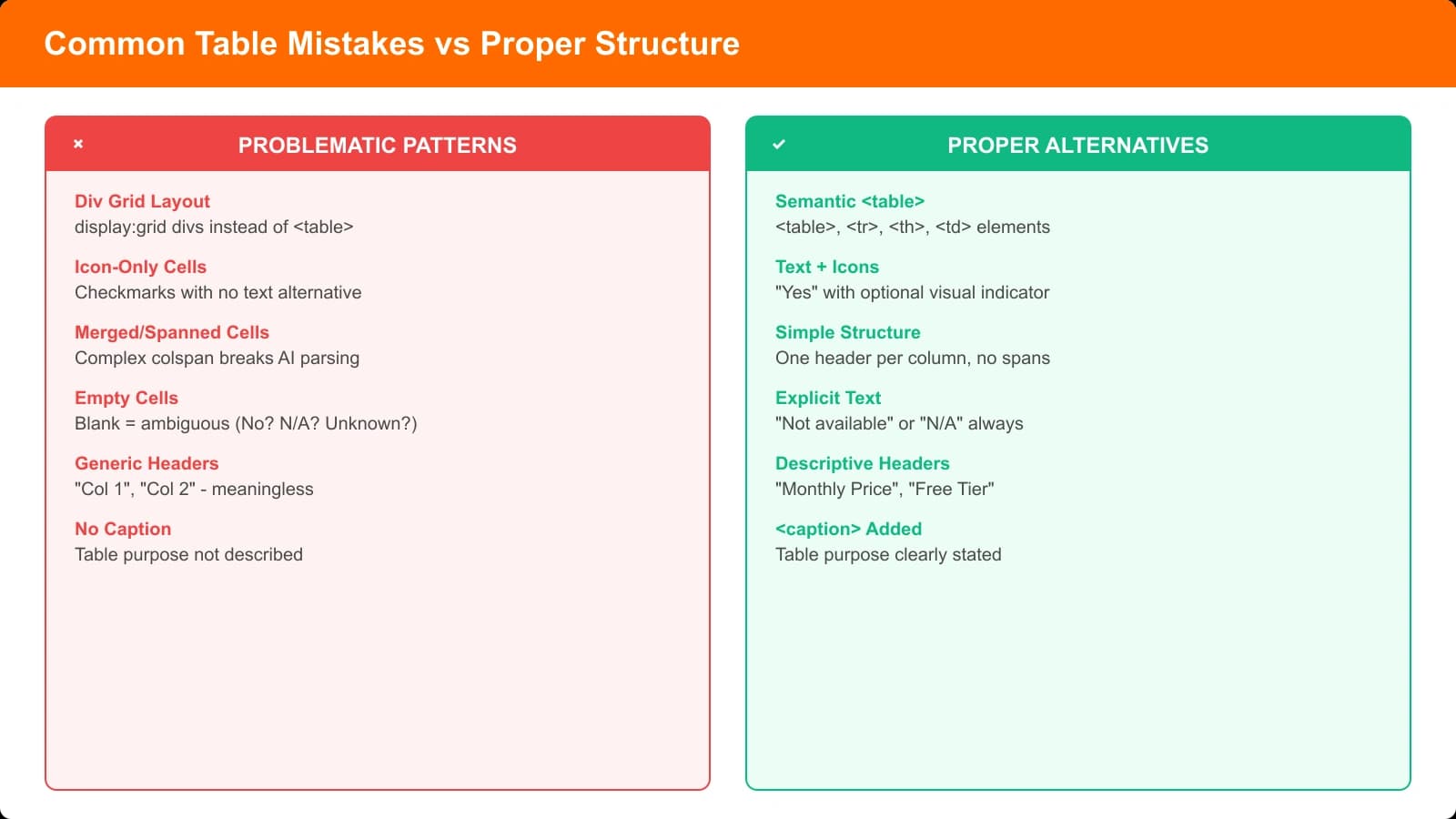
Tables That Work for Everyone
Building AI-parseable tables isn't about special tricks or complex markup. It's about using HTML tables the way they were designed—with proper semantics, clear headers, and explicit relationships.
Here's what to remember:
- Use actual
<table>elements, not CSS-styled divs - Add
<caption>to explain what the table compares - Use
scopeattributes on headers - Separate
<thead>from<tbody> - Prefer text content over icon-only cells
- Make cell content specific and self-explanatory
- Test with the copy-paste method and direct AI queries
The effort is minimal, and the payoff is significant: tables that humans can scan, screen readers can navigate, search engines can index, and AI systems can cite.
For the complete structured data framework, see our structured data for listicles guide. And for other content patterns that AI loves, check out pros/cons formatting for AI parsing.

Product Manager at BestPage. Pioneer in AEO research since 2024, exploring the convergence of SEO and GEO (Generative Engine Optimization). Led multiple AI-powered content optimization projects that achieved 300%+ citation increases in ChatGPT and Perplexity.