
Every comparison page eventually needs a table. Users expect them. They're efficient for comparing multiple options. And when done right, they dramatically accelerate purchase decisions.
The problem? Most comparison tables are terrible. They cram 20+ features into rows, force horizontal scrolling, use tiny checkmarks that blur together, and ultimately leave users more confused than when they started. A bad comparison table doesn't just fail to help—it actively hurts conversion.
This guide covers UX patterns for comparison tables that genuinely help users decide. We'll cover information architecture, visual design, responsive behavior, and the psychology of decision-making that should drive every design choice. For the broader conversion framework, see our CRO for Listicles guide.
What Comparison Tables Are Actually For
Before designing a table, understand its purpose in the user journey.
Tables Serve Decision-Stage Users
Users who reach your comparison table have already:
- Scanned your page and identified potential options
- Read about their top 2-4 candidates
- Formed preliminary preferences
- Now need to validate or differentiate
The table isn't for discovery—it's for confirmation and final differentiation. Design accordingly.
Jobs a Table Must Do
- Confirm differences: Show how options actually differ on criteria that matter
- Enable scanning: Let users quickly find the rows they care about
- Highlight winners: Make it obvious which option wins on each criterion
- Reduce cognitive load: Simplify rather than complicate the decision
Information Architecture for Tables
What you include (and exclude) matters more than how it looks.
Selecting the Right Columns
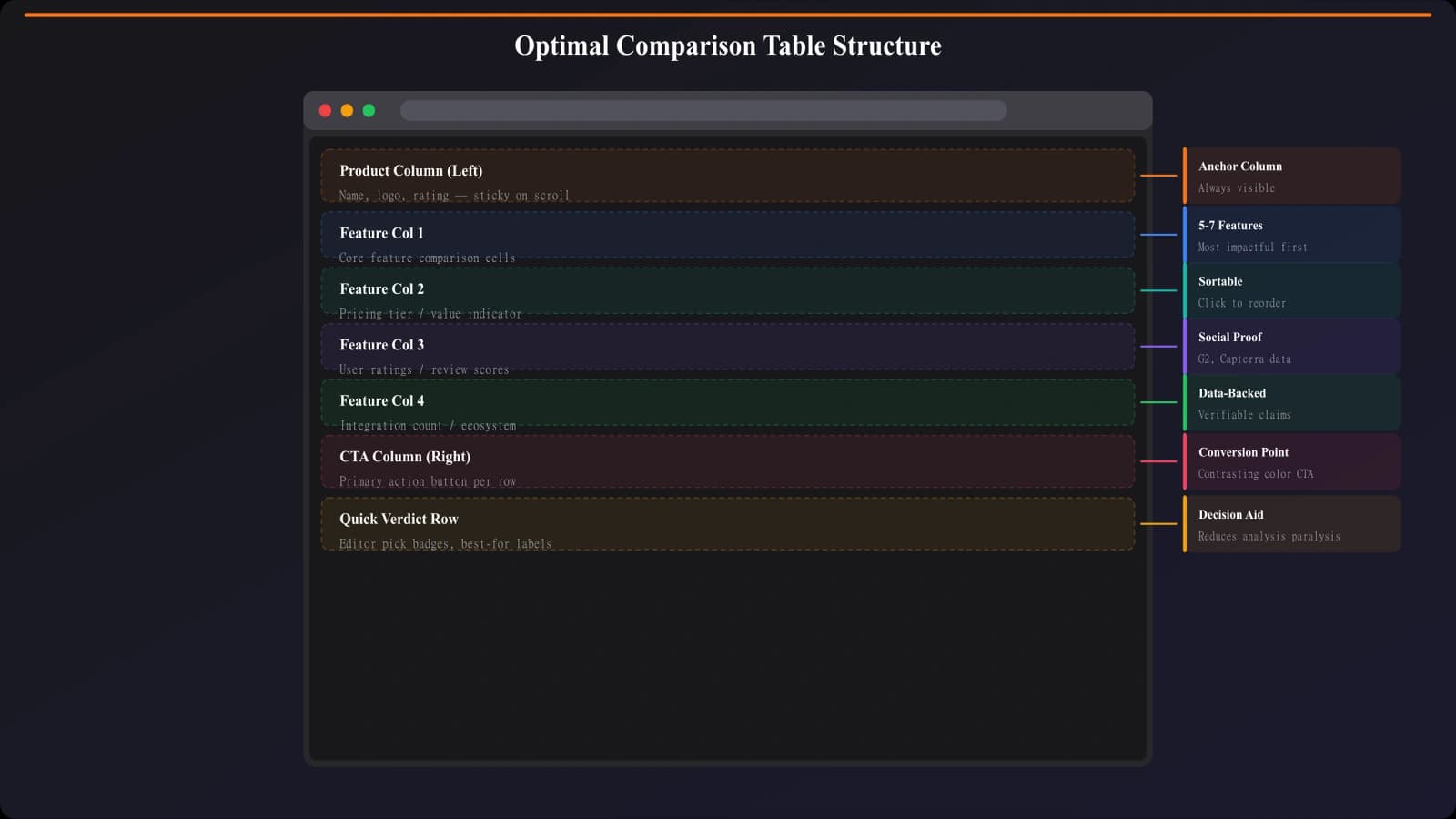
Limit to 5-7 comparison criteria. Choose based on:
- Differentiating power: Does this criterion vary significantly across options?
- Decision relevance: Do users actually care about this when choosing?
- Clarity: Can users immediately understand what's being compared?
Must-Have Columns
| Column Type | Purpose | Example |
|---|---|---|
| Product identifier | Know what's being compared | Logo + name |
| Price | Immediate qualification | Starting price |
| Primary differentiator | The main decision factor | Varies by category |
| Rating/score | Quick quality signal | Your rating or G2 score |
| CTA | Enable action | Visit site button |
Row Ordering Strategy
- Option 1: Match your page ranking (recommended top pick first)
- Option 2: Alphabetical (for neutral reference tables)
- Option 3: Price low-to-high or high-to-low
- Never: Random or arbitrary ordering
Visual Design Patterns
Visual design turns data into scannable information.
Cell Content Patterns
- Checkmarks and X's: Use for binary yes/no features only
- Partial indicators: Use for “limited” or “with add-on” situations
- Numbers: Use for quantitative comparisons (storage, users, etc.)
- Text labels: Use for categorical differences (Basic/Pro/Enterprise)
- Avoid: Long text descriptions in cells
Visual Hierarchy Techniques
- Highlight your top pick: Subtle background color or “Recommended” badge
- Sticky headers: Keep product names visible when scrolling
- Row striping: Alternate row colors for easier horizontal scanning
- Column emphasis: Make the product column more prominent
Color Usage
| Element | Color Strategy |
|---|---|
| Checkmarks (has feature) | Green or primary brand color |
| X marks (missing feature) | Gray (not red—too alarming) |
| Partial/limited | Yellow/amber |
| Recommended row | Light brand tint background |
| CTAs | Primary action color |
Build Conversion-Optimized Tables
Generate comparison pages with properly structured comparison tables built-in.
Try for Free
Responsive Table Patterns
Tables are notoriously difficult on mobile. Here are patterns that work.
Mobile-First Approaches
- Horizontal scroll: Allow swiping with visual cues that more content exists
- Stacked cards: Transform table into individual product cards
- Priority columns: Show only 2-3 most important columns on mobile
- Expandable rows: Collapse details, expand on tap
Sticky Column Pattern
Keep the product column fixed while scrolling horizontally:
- First column (product name/logo) stays fixed
- Feature columns scroll horizontally
- Visual indicator shows scroll direction
- Works well for 5+ columns on mobile
Toggle View Pattern
- Offer “Table View” and “Card View” toggle
- Default to cards on mobile, table on desktop
- Remember user preference
Decision Psychology in Tables
Understanding how users make decisions improves table design.
Avoiding Choice Overload
- Limit visible options: Show 3-5 products by default, expand for more
- Provide a recommendation: “Best for most users” reduces decision anxiety
- Use progressive disclosure: Advanced features hidden by default
Using Anchoring Effectively
The first option users see becomes their reference point:
- Put your recommended option first or second
- If including a premium option, put it first to anchor value
- Don't lead with the cheapest option if you want mid-tier sales
Highlighting Differentiation
- Winner badges: “Best for X” labels on specific options
- Standout cells: Highlight cells where an option clearly wins
- Comparison callouts: “2x faster than average” type annotations
Interactive Table Features
Interactivity can enhance tables—or clutter them. Choose carefully.
Sorting and Filtering
- Sort by column: Click column header to sort—useful for price/rating
- Quick filters: “Show only free options” type toggles
- Don't overdo it: If you have 5 products, sorting adds little value
Hover States
- Row highlighting: Subtle highlight on hover helps tracking
- Tooltips: Explain abbreviations or add context on hover
- Expanded details: Show full text on hover for truncated content
Selection for Comparison
For larger catalogs:
- Let users select 2-3 products to compare directly
- Generate focused comparison of just selected options
- Reduces overwhelm in large tables
Common Table Mistakes to Avoid
The Worst Offenders
- Too many columns: 10+ columns creates noise, not clarity
- Identical values: Rows where every product has a checkmark waste space
- Tiny text: Sacrificing readability for more content
- Missing context: Abbreviations or jargon without explanation
- No mobile solution: Tables that break completely on phones
- No CTAs: Tables without action buttons strand users
- Visual monotony: Endless identical checkmarks that blur together
Quick Fixes
| Problem | Solution |
|---|---|
| Too many columns | Cut to 5-7 most differentiating |
| All checkmarks | Remove row—all products have it |
| Tiny text | Prioritize content, increase size |
| Jargon | Plain language or tooltips |
| Broken mobile | Sticky first column + scroll |
Tables That Drive Decisions
Comparison tables should simplify decisions, not complicate them. The best tables feel almost invisible—users get the information they need and move to action without friction.
Key principles to remember:
- Less is more: 5-7 columns that matter beats 15 that overwhelm
- Differentiate: Only include rows where products actually differ
- Visual hierarchy: Guide eyes to what matters with color and emphasis
- Mobile-first: Plan for thumb-scrolling from the start
- Enable action: Every table needs CTAs
- Reduce anxiety: Recommendations and anchoring help users decide
Audit your existing tables against these principles. Cut the columns users don't need. Add the visual cues that guide decisions. Test on mobile. The result will be tables that actually convert.
For the complete conversion optimization framework, see our CRO for Listicles guide. For mobile-specific patterns, explore our guide on mobile listicle UX.

Product Manager at BestPage. Pioneer in AEO research since 2024, exploring the convergence of SEO and GEO (Generative Engine Optimization). Led multiple AI-powered content optimization projects that achieved 300%+ citation increases in ChatGPT and Perplexity.