
Check your analytics. For most comparison pages, mobile traffic dominates—often 60-70% of total visitors. Yet when we audit listicle pages, they're almost always designed on desktop and awkwardly adapted for smaller screens.
The result? Tiny touch targets. Horizontal scroll nightmares. CTAs buried below the fold. Tables that require pinch-zooming. All of this kills mobile conversion while you wonder why traffic doesn't translate to clicks.
This guide reframes mobile listicle design from first principles. We'll cover thumb zones, content prioritization, responsive patterns, and the specific elements that need mobile-first attention. For the broader conversion framework, see our CRO for Listicles guide.
Understanding Mobile Comparison Context
Mobile users aren't just desktop users with smaller screens—their context and behavior differ fundamentally.
Mobile User Behavior Patterns
- Shorter sessions: Mobile users scan quickly, often in transit or between tasks
- Lower patience: If content doesn't load or work, they bounce faster
- Different intent mix: More research/browsing, less immediate purchase
- Return visits: Often research on mobile, purchase on desktop later
- Distraction-prone: Notifications, multitasking compete for attention
Design Implications
| Behavior | Design Response |
|---|---|
| Shorter sessions | Front-load key info, quick picks section |
| Lower patience | Optimize load time, reduce friction |
| Research focus | Easy bookmarking, shareable links |
| Return visits | Consistent experience across devices |
| Distraction | Clear visual hierarchy, easy resume |
The Thumb Zone Framework
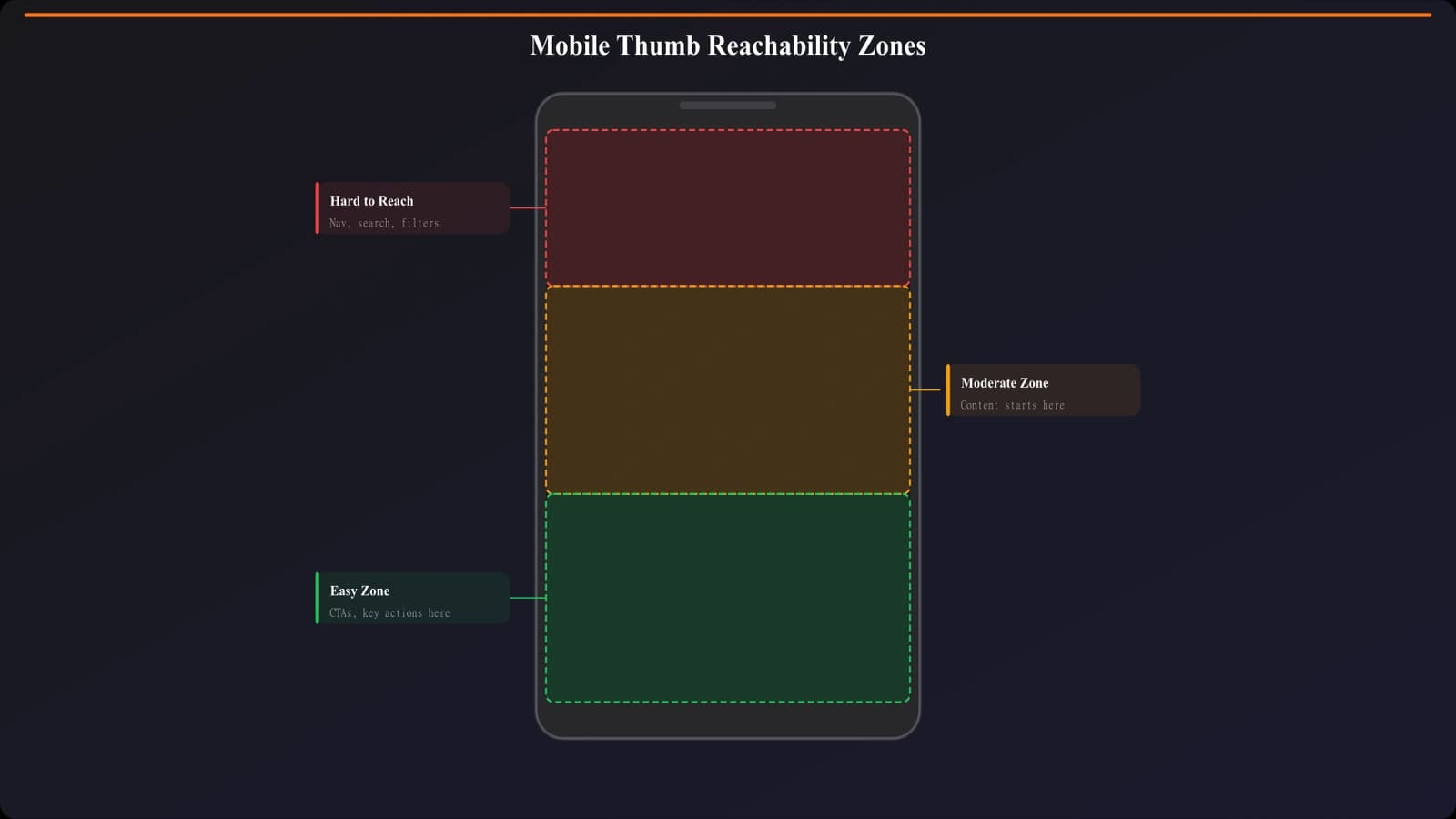
Users hold phones with one hand and navigate with their thumb. This creates zones of easy, moderate, and difficult reach.
Understanding Thumb Reach
- Easy zone: Bottom center and lower sides of screen
- Moderate zone: Middle of screen
- Hard zone: Top corners, especially top-left for right-handed users
Strategic Element Placement
- Primary CTAs: Place in easy zone (bottom of viewport or floating)
- Navigation: Bottom nav bar or hamburger accessible from bottom
- Filters/toggles: Avoid placing critical controls in hard zones
- Scroll actions: Thumbs naturally scroll up—design for downward reading
Touch Target Optimization
Undersized touch targets are the most common mobile UX failure on listicle pages.
Minimum Size Guidelines
- Primary buttons: Minimum 48x48px, recommended 56x56px or larger
- Secondary links: Minimum 44x44px tap area (padding counts)
- Spacing between targets: Minimum 8px to prevent mis-taps
- Full-width CTAs: Often best for primary actions on mobile
Common Touch Target Issues
- Inline text links: Too small—use buttons or larger link styling
- Close buttons: Often tiny X icons—make larger or use swipe-to-dismiss
- Form fields: Small inputs frustrate users—use generous sizing
- Table cells: Rows need to be tall enough for comfortable tapping
Mobile CTA Patterns
| Pattern | When to Use |
|---|---|
| Full-width button | Primary action, end of product cards |
| Floating sticky CTA | Important action that should persist |
| Inline button | Secondary actions within content |
| Bottom bar CTA | E-commerce style persistent actions |
Mobile Content Prioritization
You can't show everything on mobile. Prioritize ruthlessly.
Above-the-Fold Essentials
Mobile first viewport should include:
- Clear title: Users know they're in the right place
- Quick answer: Top pick or quick picks summary
- First product visible: Content begins, not just navigation
- Scroll indication: Visual cue that more content exists
Progressive Disclosure Strategy
- Collapsed sections: Expand on tap for detailed content
- Read more links: Truncate long descriptions with expand option
- Tab interfaces: Show one category at a time
- Load more: Show 5 products, load more on demand
What to Hide or Remove on Mobile
- Sidebar content (move to bottom or remove)
- Large decorative images that don't add information
- Secondary navigation elements
- Excessive whitespace between sections
- Multi-column layouts that don't stack well
Mobile-Optimized Listicles
Generate comparison pages with mobile-first design built in from the start.
Try for Free
Responsive Component Patterns
Specific listicle components need thoughtful mobile adaptation.
Product Cards
- Single column: Stack cards vertically, full width
- Compact info: Show essential info, hide details behind expand
- Image sizing: Smaller but still recognizable product images
- CTA placement: Full-width button at card bottom
Comparison Tables on Mobile
Tables are the hardest component to make mobile-friendly:
- Horizontal scroll: Sticky first column, scroll for features
- Card transformation: Convert to stacked cards on small screens
- Reduced columns: Show only 3-4 most important on mobile
- Toggle views: Let users switch between table and card view
For detailed table patterns, see our guide on comparison table UX.
Quick Picks Section
- Horizontal scroll: Swipeable cards showing top 3
- Compact cards: Logo, name, one-line summary, CTA
- Dots indicator: Show position in carousel
- Touch-friendly: Large enough cards to tap accurately
Mobile Performance Essentials
Performance is UX on mobile. Slow pages kill conversion.
Loading Priorities
- Critical CSS for above-fold rendering
- First visible content and images
- Interactive elements (CTAs, navigation)
- Below-fold images (lazy load)
- Third-party scripts (defer)
Image Optimization
- Responsive images: Serve smaller images to smaller screens
- WebP format: 25-35% smaller than JPEG at same quality
- Lazy loading: Only load images as they enter viewport
- Placeholder strategy: Low-res blur or skeleton while loading
Target Metrics
| Metric | Target |
|---|---|
| Largest Contentful Paint | < 2.5 seconds |
| First Input Delay | < 100ms |
| Cumulative Layout Shift | < 0.1 |
| Time to Interactive | < 3.8 seconds |
Sticky Elements on Mobile
Sticky elements can help or hurt mobile UX. Use thoughtfully.
When Sticky Works
- Sticky CTA bar: Keeps action visible without scrolling up
- Sticky header: Logo and navigation always accessible
- Sticky filters: When filtering is critical to experience
When Sticky Hurts
- Multiple sticky elements stacking up (death by sticky)
- Sticky elements on short pages (not needed)
- Sticky elements taking >20% of screen height
- Sticky elements obscuring content users are trying to read
For detailed sticky element guidance, see our guide on sticky elements in listicles.
Testing Mobile Experience
Testing Methods
- Real devices: Test on actual phones, not just browser devtools
- Multiple screen sizes: Test small (320px), medium (375px), large (428px)
- Both orientations: Portrait and landscape
- Slow connections: Test on 3G to catch performance issues
Mobile Testing Checklist
- All CTAs reachable without scrolling up
- Touch targets large enough (48px minimum)
- No horizontal scroll on body
- Tables readable without pinch zoom
- Forms usable with virtual keyboard open
- Images load quickly and display correctly
- Sticky elements don't block content
Mobile-First Listicle Success
Mobile isn't a viewport to adapt to—it's your primary audience. Design for mobile first, enhance for desktop.
Key principles:
- Thumb zones matter: Place critical actions where thumbs naturally reach
- Touch targets: 48px minimum, generous spacing between
- Prioritize ruthlessly: Show essential content, hide the rest
- Progressive disclosure: Let users expand for detail
- Performance is UX: Slow pages mean lost conversions
- Test on real devices: Simulators miss real-world issues
Pull up your listicle on your phone right now. Try to complete the primary action with just your thumb. If it's awkward, you have work to do.
For the complete conversion optimization framework, see our CRO for Listicles guide. For specific component patterns, explore our guides on comparison tables and sticky elements.

Product Manager at BestPage. Pioneer in AEO research since 2024, exploring the convergence of SEO and GEO (Generative Engine Optimization). Led multiple AI-powered content optimization projects that achieved 300%+ citation increases in ChatGPT and Perplexity.