
GA4 out of the box tracks pageviews and basic engagement. That's not enough for comparison content optimization. You need to know which products users click, how far they scroll, whether they engage with comparison features, and which pages drive downstream conversions. Without proper configuration, GA4 provides vanity metrics rather than actionable insights.
This guide covers GA4 configuration for comparison and listicle content publishers. We assume you have basic GA4 installed; we focus on the configuration specific to listicle optimization rather than general GA4 setup. By the end, you'll have a GA4 implementation that reveals how users engage with your comparison content and which content drives results.
The configuration covered here represents current best practices as of 2026. GA4 continues to evolve; check for interface changes if settings appear different from described. The core concepts—event tracking, custom dimensions, and conversion configuration—remain stable even as specific interfaces change.
Enhanced Measurement Configuration
Start with GA4's built-in enhanced measurement settings.
Enabling Relevant Features
Navigate to Admin > Data Streams > [Your Stream] > Enhanced measurement:
- Page views: Enabled by default; leave on
- Scrolls: Enable for scroll depth tracking (triggers at 90%)
- Outbound clicks: Enable for basic outbound click tracking
- Site search: Enable if you have on-site search
- Form interactions: Enable if you capture leads on listicle pages
- Video engagement: Enable if you embed product videos
- File downloads: Enable if you offer downloadable resources
These built-in events provide baseline data. We'll add custom events for deeper listicle-specific tracking.
Enhanced Measurement Limitations
Understand what enhanced measurement doesn't capture:
Enhanced measurement gaps for listicles:
• Scrolls only track 90% threshold (not 25%, 50%, 75%)
• Outbound clicks lack product-level detail
• No tracking of which products are viewed/clicked
• No tracking of comparison feature usage
• No product position tracking
Custom implementation fills these gaps. Enhanced measurement provides the foundation; custom events provide the detail.
Custom Event Setup
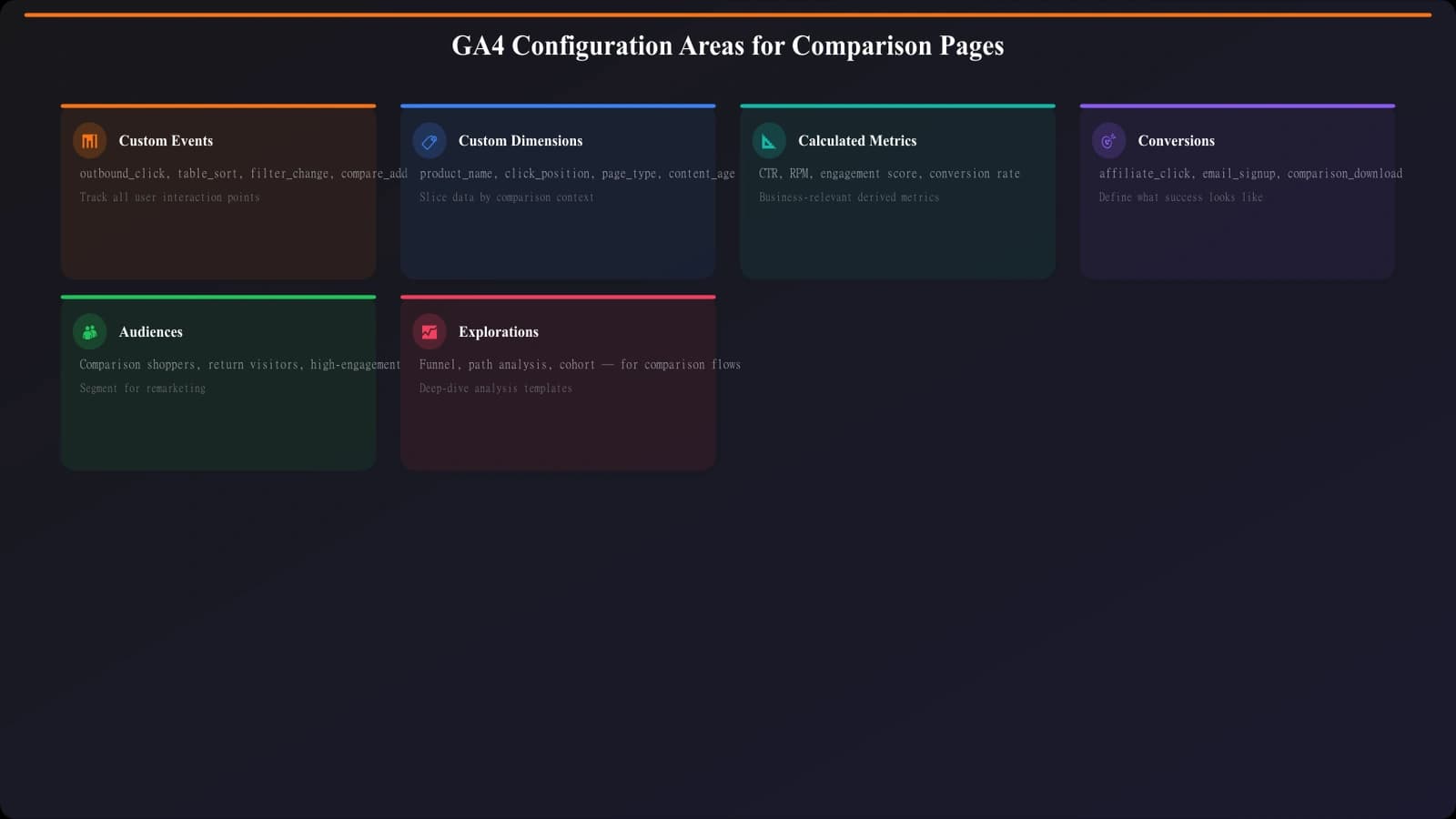
Create custom events for listicle-specific tracking.
Product Click Event
Track clicks on product links with rich context:
Product click event configuration:
• Event name: product_click
• Parameters:
- product_name (string): Name of clicked product
- product_position (number): Position in listicle (1-10)
- click_type (string): cta_button, product_name, image, learn_more
- destination_url (string): Full destination URL
- listicle_slug (string): Page identifier
Implement via Google Tag Manager with data layer or data attribute extraction. This event enables analysis like “which products get most clicks” and “how does position affect click rate.”
Granular Scroll Events
Track scroll depth beyond the default 90% threshold:
- scroll_25: User scrolled 25% of page
- scroll_50: User scrolled 50% of page
- scroll_75: User scrolled 75% of page
- scroll_100: User scrolled to page bottom
Use GTM scroll trigger with percentage thresholds. Include page identifier to analyze scroll by content type.
Product View Events
Track when products enter viewport (exposure tracking):
Product view event:
• Event name: product_view
• Trigger: Product element enters viewport
• Parameters:
- product_name: Which product became visible
- product_position: Position in listicle
- view_percent: How much of element was visible
Product views enable analysis of exposure vs clicks—understanding whether low-click products are seen but not clicked or simply not seen.
Custom Dimensions and Metrics
Create custom dimensions for listicle-specific analysis.
Page-Level Dimensions
Create dimensions for content classification:
- content_category: Category of listicle (CRM, Marketing, etc.)
- content_type: Listicle, review, guide, etc.
- products_featured: Number of products on page
- publish_date: When content was published
- last_updated: When content was last updated
Set these via data layer on page load. Navigate to Admin > Custom definitions > Create custom dimension.
Event-Level Dimensions
Register event parameters as custom dimensions for reporting:
Event parameters to register:
• product_name → Custom dimension for product analysis
• product_position → Custom dimension for position analysis
• click_type → Custom dimension for CTA analysis
• listicle_slug → Custom dimension for content analysis
Register parameters in Admin > Custom definitions before they appear in reports. Unregistered parameters are collected but not available for standard reporting.
Conversion Configuration
Mark key events as conversions for reporting and attribution.
Marking Conversion Events
Navigate to Admin > Events, then toggle “Mark as conversion” for:
- product_click: Primary listicle conversion
- form_submit: If capturing leads
- newsletter_signup: If building email list
- scroll_100: Optional engagement conversion
Conversions appear in attribution reports and can be used for audience building and optimization.
Conversion Values
Assign values to conversions for ROI analysis:
Conversion value approaches:
• Fixed value: Set static value per conversion type
• Dynamic value: Pass value parameter with event
• Product-specific: Different values for different products
• Estimated value: Based on historical conversion rates
Values enable revenue attribution even when actual transactions happen off-site.
Generate Analytics-Ready Listicles
Create comparison content with proper data attributes for GA4 tracking.
Try for Free
Building Useful Reports
Configure reports that surface actionable insights.
Custom Explorations
Build exploration reports for listicle analysis:
- Content performance: Pages by sessions, conversions, conversion rate
- Product performance: Products by clicks, click rate, position
- Engagement analysis: Scroll depth and time engagement by content
- Path analysis: User journeys through listicle content
- Conversion analysis: Conversion paths and attribution
Save commonly-used explorations for quick access. Share with team members who need regular access.
Looker Studio Integration
For regular reporting, connect GA4 to Looker Studio:
- Use native GA4 connector for real-time data
- Build calculated fields for derived metrics
- Create scorecards for key performance indicators
- Add date range controls for flexible analysis
- Set up scheduled delivery for stakeholder reporting
Looker Studio dashboards make data accessible to team members who don't work directly in GA4.
Testing and Verification
Verify your configuration works correctly before relying on data.
Using DebugView
Test events using GA4 DebugView:
- Enable debug mode via GA Debugger extension or URL parameter
- Navigate to your listicle pages
- Perform tracked actions (scroll, click products)
- Verify events appear in DebugView with correct parameters
- Check parameter values match expectations
DebugView is essential for verifying tracking before launch.
Realtime Reports
After debug verification, check realtime reports to confirm events flow to production GA4. Look for your events appearing with expected frequency. If events appear in debug but not realtime, check for consent or filtering issues.
Conclusion: Analytics That Enable Optimization
Proper GA4 configuration transforms comparison content analytics from vanity metrics to actionable insights. You'll understand which content drives conversions, which products users engage with, how scroll depth affects outcomes, and where optimization efforts should focus.
Start with enhanced measurement basics, add custom events for listicle-specific tracking, register custom dimensions for analysis, mark conversions for attribution, and build reports that surface insights. Test thoroughly before relying on data for decisions.
The investment in proper analytics configuration pays returns through informed optimization. Without it, you're optimizing blind.
For comprehensive tracking strategy, see Conversion Tracking Guide. For click tracking specifics, see Outbound Click Tracking.

Product Manager at BestPage. Pioneer in AEO research since 2024, exploring the convergence of SEO and GEO (Generative Engine Optimization). Led multiple AI-powered content optimization projects that achieved 300%+ citation increases in ChatGPT and Perplexity.